Your floor plan in Home Assistant
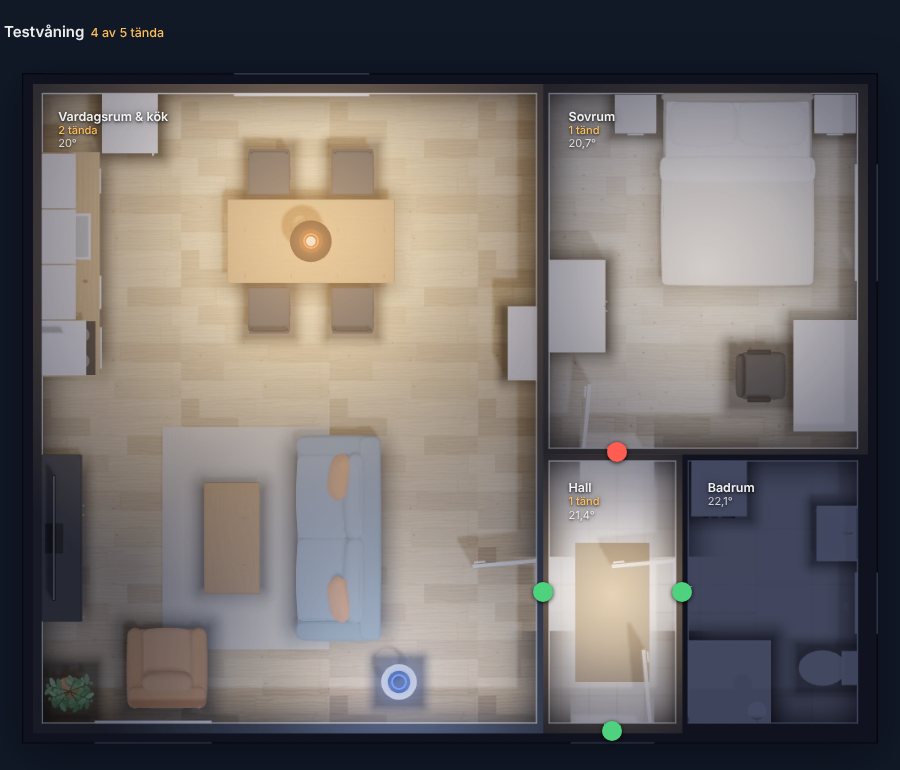
Draw your home in Hemrit and get a good-looking floor plan in Home Assistant. Lights that are on make their rooms glow, locks and doors show whether they are closed, and every room shows its temperature. Tap a light to switch it on or off.
Getting started
-
Draw your home
Draw rooms, doors and windows in Hemrit and add furniture if you like. Place lights (Ceiling light, Floor lamp, Table lamp, Wall light) where they really are. Cameras, motion sensors, speakers and heat pumps are in the Smart home category.
-
Add your entities and create the file
Open Menu → Home Assistant. Tap the plan where a light or sensor is, enter the entity and choose how it is shown (Show as): light, temperature, humidity, door, lock, motion, camera, speaker, heat pump, switch or sensor value. Hemrit suggests a type from the name, so
lock.front_doorbecomes a lock. Add as many points per room as you like and drag them into place.You find your entities in Home Assistant under Settings → Devices & services → Entities. Lights and sensors you already placed as furniture can also be linked directly under Rooms, furniture lights and doors.
Tap Create file and save the file, for example
ground-floor.json. -
Add the card to Home Assistant (once)
Go to Settings → Dashboards, open the ⋮ menu in the top right corner and choose Resources. Add a resource with the address below and the type JavaScript module. Can't see Resources? Turn on Advanced mode in your user profile.
https://hemrit.com/ha/hemrit-floorplan-card.jsReload the page afterwards. In the companion app: pull down to refresh. The card then updates automatically when we improve it.
-
Choose the file
Edit a dashboard, tap Add card, search for Hemrit and pick Hemrit planritning. Tap Choose file from Hemrit and pick the file you saved. The plan shows up right away. Tap Save.
Several floors? Tap Add another floor and choose the next file, and the floors become tabs. Under Appearance → Show the floors you can instead show all floors at once, above or beside each other; Move up decides which one is on top. The plan gets biggest in a Panel view.
-
Add and change devices in Home Assistant
Under Devices on the plan in the card's settings, tap the plan to add a light or sensor, tap a dot to change or remove it, and drag to move it. What you do here stays when you replace the file. Walls, rooms and furniture are changed in Hemrit (the link Edit the drawing in Hemrit is in the card's settings). Then create the file again and tap Replace file.
How the card works
For every device you place you choose what happens on tap (On tap) and on press and hold (Press and hold). If you choose nothing, the defaults below apply.
| Action | What happens |
|---|---|
| Toggle | Switches on and off, runs a scene or script, opens and closes a blind. Locks ask first. |
| Preset | The light turns on at the brightness and colour you chose, for example 40 % warm white. The next tap switches it off. |
| Quick panel | A panel with controls: brightness, colour temperature and colour for lights, target temperature and mode for heat pumps, open and close for blinds, volume for speakers. |
| More info | The standard Home Assistant dialog with all details and history. |
| Call a service | Any service, for example script.good_night, with your own data. |
| Default | Tap | Press and hold |
|---|---|---|
| Light | Toggle | Quick panel |
| Switch, plug | Toggle | More info |
| Blind, fan | Toggle | Quick panel |
| Heat pump, speaker | Quick panel | More info |
| Scene, script | Run | More info |
| Lock, sensors, appliances | More info | More info |
Sensors show their value on the plan, appliances turn amber while running and show the time left, and electric cars show their charge level.
Outdoors and zoom
Under Outdoors around the house in the card's settings, add 0–10 metres of ground around the house. Place outdoor lights, cameras, an outdoor thermometer, garage door or EV charger there just like indoors. Outdoor lights light up the ground but never shine in through the walls.
In the card, pinch to zoom (ctrl and scroll wheel, or pinch on the trackpad on a computer) and drag to move. Double-tap the plan to zoom in where you tap, and double-tap again or use the ⤢ button to go back.
Scenes and room names
Above the plan you get the button All off, which becomes All on when everything is off (with several floors also one per floor). Add your own scenes in the card's settings under Scenes. The easiest is to build the scene or script in Home Assistant (Settings → Automations & scenes) and pick it from the list, so it can do anything Home Assistant can. You can also build the scene right in the card:
- All lights: a base rule, for example on at 35 % warm white or off, for chosen floors and rooms. You can also leave other lights as they are.
- Devices in the scene: as many devices as you like, each doing its own thing. The kitchen light at 15 %, the heat pump at 19° in heat mode, the blinds closed, the front door locked, the speaker paused or a script that runs.
A device in the list follows its own row instead of the base rule. One example is Good night: all lights off except a dim one in the hallway, lower the heat and lock the door.
If a room got the wrong name, fix it under Room names in the card's settings. You can also hide single rooms or all room names there.
Options
Title, how dark rooms with the lights off are and how strong the glow is can be set right in the card's settings. If you prefer YAML, these are the options:
type: custom:hemrit-floorplan-card
floors: …                 # saved when you choose a file in the card
title: false              # hide the title
dim: 0.32                 # how bright rooms with the lights off are, 0–1
glow: 1                   # glow strength, 0.5–2
light_tap: more-info      # tapping a light opens more info instead
show_unmapped: true       # show lights without an entity as grey rings
max_height: 80vh          # limit the height on large screens
entities:                 # change an entity without creating a new file
  Kitchen: light.kitchen_ceiling   # room name → the room's light
Frequently asked questions
Does it cost anything?
No. Both Hemrit and the card are free.
Is anything about my home sent to Hemrit?
No. The floor plan and the entities are stored in your own Home Assistant. The card is loaded from hemrit.com, but it sends nothing back.
I changed my drawing. How do I update?
Tap Edit the drawing in Hemrit next to the floor in the card's settings. The drawing travels inside the file, so it opens in Hemrit on any device, even if you drew it on another one. Then create the file again and tap Replace file. Everything you added in Home Assistant stays.
I can't find Hemrit when adding a card
The resource is missing or the page has not been reloaded. Check that https://hemrit.com/ha/hemrit-floorplan-card.js is listed under Resources, and reload the page (in the app: pull down).
Can I put the file in the www folder instead?
Yes, if you prefer. Put the file in www/hemrit and set plans: [/local/hemrit/filename.json] in the card's YAML.
Does it work in the companion app and on a wall tablet?
Yes. The card adapts to the screen and works in the Home Assistant app, in the browser and on tablets.
Is Hemrit available in English?
Yes. Hemrit follows your browser language and can be switched between English and Swedish under Menu → Language.